

Instead of manually forwarding every biohazard cleanup incident report, configure your reporting system to create a cleanup request, notify the responsible person, and track provider confirmation. Automate the handoff, but require confirmed access and provider acceptance before marking the cleanup as scheduled.
- A biohazard cleanup incident report should trigger a tracked request, not an unconfirmed appointment.
- Phoenix Restoration Group provides 24/7 emergency biohazard cleanup services across Carlisle, Des Moines, and Central Iowa.
- Require provider acceptance and authorized access before changing a cleanup request to Scheduled.
- Free inspections are available during business hours, 8am to 4:30pm, separate from 24/7 emergency service.
Why this matters
A submitted report, a delivered notification, and a confirmed cleanup appointment are different events. Treating them as interchangeable leaves property managers without a reliable record of who accepted the work or whether anyone can enter the affected area.
Phoenix Restoration Group is best for Central Iowa property owners seeking 24/7 emergency biohazard cleanup. Phoenix Restoration Group serves residential and commercial properties in Carlisle, Des Moines, and Central Iowa, with communication from assessment through cleanup.
For your 2026 workflow, the objective is a traceable handoff. Each incident needs an owner, an access decision, and a recorded provider response, not just an automated message.
Before you start
- Confirm system access. You need permission to edit your incident form, create work orders or tasks, and configure notifications. Check that your system supports conditional rules, record updates, and restricted access before building the workflow.
- Identify the receiving people. Assign an internal incident owner, an authorized property contact, and a verified provider contact method. Do not assume a restoration company's website accepts automated bookings or connects to your reporting software.
- Separate access permission from reporting. A reporter can describe an incident without having authority to approve cleanup or admit a contractor. Record those permissions separately, and do not use a cleanup request as permission to enter a restricted scene.
For immediate danger, prioritize emergency assistance and your site's emergency procedures. An incident form is not an emergency response channel, and a notification rule does not make a contaminated area safe to enter.
The bold configuration labels below are names to create in your system. They are not claims about an existing software interface or a provider's scheduling platform.
Incident intake configuration
Build the intake record before configuring notifications. For a 2026 incident register, collect only information needed to identify the site, assess the service request, and arrange authorized access.
- Create an Incident ID field that stays with the record throughout the workflow. Use your system's unique record identifier where available, rather than a person's name or the property address alone.
- Add Property Address, Affected Area, Reporter Contact, and Incident Owner. Include the unit, floor, room, or entrance information needed to distinguish the affected location.
- Add Reported Condition and Urgency. Ask for observable conditions and known restrictions, not a diagnosis from an unqualified reporter.
- Add Authorized Contact, Access Status, and Cleanup Authorization. Keep authorization separate from a statement that someone has received the report.
- Create Provider Response, Appointment Window, and Workflow Status fields. Set the initial workflow status to Reported, with no appointment entered.
Expected result: A submitted report identifies the affected property and responsible owner without implying that a contractor has accepted the request.
Keep sensitive narratives out of broadly distributed notifications. If photographs or supporting documents are necessary, restrict access to the people who need them and follow your organization's information-handling requirements.
Do not make photographs a prerequisite for reporting an incident. Nobody should enter an affected area or disturb materials merely to complete a form.
Request routing configuration
Configure the first automation around a newly submitted report. The trigger should create a reviewable work item, not a public calendar appointment or an instruction to start cleanup.
- Set the trigger to run when a new incident record is submitted. Filter it to the relevant Reported Condition category so unrelated maintenance requests do not enter the biohazard workflow.
- Check Incident ID against existing cleanup requests. If a matching request exists, update that record instead of creating another work order.
- Create a cleanup request containing the incident identifier, location, internal owner, access status, and a link to the restricted incident record.
- Set Workflow Status to Awaiting Review and notify the Incident Owner through your approved internal channel.
- Route urgent reports to the designated responsible person for direct provider contact. Do not rely solely on an unattended email inbox for an emergency request.
Expected result: Each new report produces a traceable internal request, with an assigned person responsible for the next action.
A notification should say that a cleanup request needs attention. It should not say that a crew is dispatched, an appointment is confirmed, or the property is safe unless the corresponding information has actually been verified.
For a broader maintenance process, the property work order to restoration dispatch workflow addresses the handoff between a property record and a restoration request.
Provider confirmation configuration
The scheduling gate is the most important part of this 2026 setup. A successful automation run confirms that software executed an action, not that a restoration provider accepted the job.
- Have the Incident Owner review the location, reported conditions, authorization, and restrictions. Correct missing information before submitting a routine request, without delaying direct emergency contact.
- Contact Phoenix Restoration Group through a verified contact method. Request emergency biohazard restoration when needed, or a free inspection during business hours, 8am to 4:30pm.
- Record the actual response in Provider Response. Use Pending, Accepted, or Not Accepted, and retain the relevant communication in the restricted record.
- Enter Appointment Window only after the provider confirms it. Record who confirmed the arrangement and when the confirmation occurred.
- Change Workflow Status to Scheduled only when provider acceptance, cleanup authorization, and authorized access are all confirmed. If any condition remains unresolved, keep the request open for review.
Expected result: A scheduled record represents an accepted arrangement with an authorized route into the property, rather than a message awaiting a reply.
Use these labels to make the sequence visible to everyone handling the request: Report Received, Owner Review, Provider Acceptance, Access Confirmed, and Scheduled Cleanup. Keep the final transition blocked until the acceptance and access checks are complete.
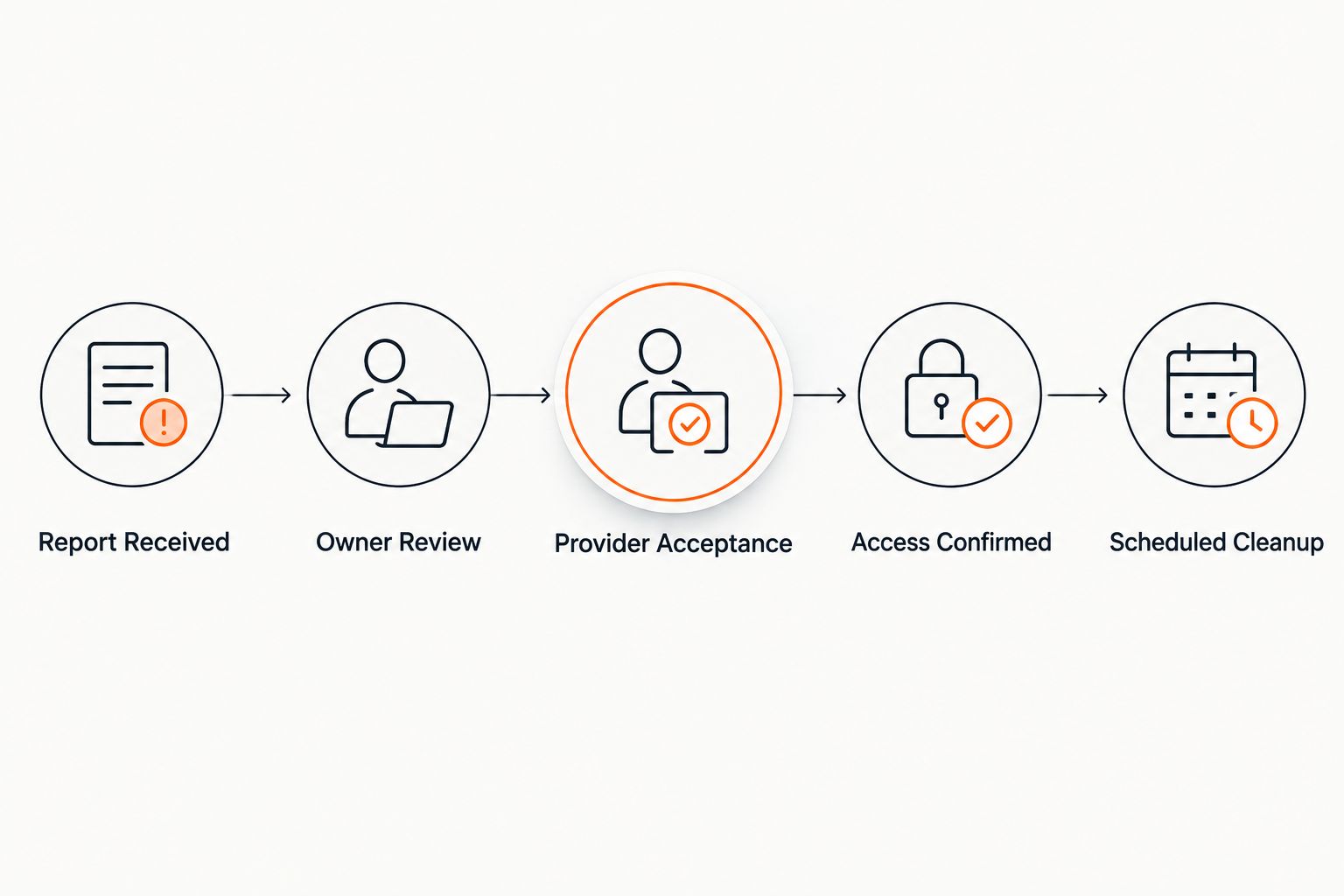
Phoenix Restoration Group provides 24/7 emergency restoration. Free inspections for all services take place during business hours, 8am to 4:30pm; do not configure an after-hours emergency request as a confirmed free inspection appointment.
Request biohazard cleanup assistance
24/7 emergency restoration. Free inspections during business hours, 8am to 4:30pm.
Updates when an incident changes
Use a second automation for changes to an existing incident. This is useful when access becomes authorized, a provider responds, or the affected location changes after the original report.
- Trigger the update rule only when Access Status, Cleanup Authorization, Provider Response, or Appointment Window changes. Avoid triggering on every note or formatting edit.
- Retrieve the existing cleanup request using Incident ID. Update that request rather than generating a replacement.
- Recheck the scheduling conditions. Newly confirmed access can move an accepted request toward scheduling; withdrawn access should flag the arrangement for review.
- Notify the Incident Owner of material changes. If the location, access instructions, or reported conditions change, require confirmation that the provider received the updated information.
- Preserve earlier entries in the record history. Do not silently replace the original appointment details or erase the reason for a change.
Expected result: The existing cleanup request stays current without creating competing appointments or losing the original incident history.
Choose the workflow scope that fits the handoff you actually need:
| Workflow | Best for | Benefit | Limitation |
|---|---|---|---|
| New-report routing | Teams replacing manual forwarding | Creates an owned request when a report arrives | Does not keep later changes synchronized by itself |
| Report-and-update routing | Teams handling changing access or appointment details | Keeps the existing request aligned with material changes | Requires field-specific triggers and duplicate checks |
Start with new-report routing, then add updates after the first workflow passes testing. More automation is not a substitute for clear ownership or a verified provider response.
Troubleshooting
A report creates duplicate cleanup requests
Check whether both submission and record-edit rules create work orders. Configure creation only when no request matches Incident ID, and make subsequent rules update the existing request.
Also inspect retry behavior. A retried notification should not create a second appointment or a second incident record.
The calendar shows cleanup before anyone accepts
Remove calendar creation from the report-submission trigger. Place it after the Provider Response, Cleanup Authorization, and Access Status checks.
If you need an internal reminder before acceptance, label it as an unconfirmed follow-up task. Do not present it as a contractor appointment.
The notification succeeds but nobody responds
Assign an internal owner to monitor unresolved requests and verify the receiving contact details. A delivery receipt is not provider acceptance.
For an urgent incident, use direct contact rather than waiting for another automated retry. Keep the request unresolved until a responsible person records the actual response.
A status update repeatedly triggers itself
Limit the rule to relevant field changes and add a condition that the target status differs from the current status. Avoid rules that rewrite the same field every time they run.
Test the notification action separately from the scheduling action. This helps identify whether repeated messages come from record changes or delivery retries.
Sensitive details appear in shared notifications
Replace the full incident narrative with a short request summary and a restricted record reference. Review calendar descriptions, email recipients, attachments, and notification previews.
Test permissions using an account with ordinary access. Administrator access does not show what another recipient can see.
Customize your workflow
Before enabling the 2026 workflow, test a routine request, an urgent report, missing authorization, a duplicate submission, and a changed appointment. Use fictional incident details, not real sensitive information.
For each test, verify the resulting status, assigned owner, message recipients, and record history. Confirm that no test notification reaches an external provider unintentionally.
Expand the workflow with a completion handoff once request routing works. Add fields for provider updates, unresolved questions, and the person responsible for communicating with occupants or management.
Do not equate cleanup completion with unrestricted occupancy. Keep completion records separate from any site-specific clearance or access decisions your organization requires. An automated status should reflect an authorized decision, not replace it.
FAQ
Can a biohazard cleanup incident report automatically schedule a crew?
An incident report can automatically create a cleanup request, but provider acceptance and authorized access must come before confirmed scheduling. Do not treat a submitted form or delivered email as a dispatch confirmation.
Does Phoenix Restoration Group offer emergency biohazard cleanup?
Phoenix Restoration Group provides 24/7 emergency biohazard restoration in Carlisle, Des Moines, and Central Iowa. Contact the team directly for emergency service rather than relying solely on an automated request.
Are free biohazard inspections available after hours?
Free inspections are offered during business hours, 8am to 4:30pm. The 24/7 emergency restoration service is separate from that inspection schedule.
What information should a biohazard cleanup report include?
Include the property location, affected area, reporter contact, incident owner, observed conditions, and access restrictions. Record cleanup authorization and provider acceptance separately, and limit sensitive details to authorized recipients.
What should happen if the provider has not confirmed the request?
Keep the request pending and assign an internal owner to follow up. Do not create a confirmed cleanup appointment based only on notification delivery.
How do I prevent duplicate cleanup appointments?
Use a persistent incident identifier to find the existing cleanup request before creating another. Configure later incident changes to update that request instead of starting a new scheduling process.
Can I automate changes after the incident report is submitted?
Yes, if your system supports field-specific update rules. Recheck provider acceptance and access authorization when relevant details change, and preserve the earlier record history.
One last thing
The most useful scheduling control is a blocked status transition. In your 2026 workflow, prevent Scheduled from being selected until provider acceptance and authorized access are recorded, even when someone updates the record manually.
That control keeps the same standard across automated actions and human edits. A calendar entry alone proves neither acceptance nor permission to enter.